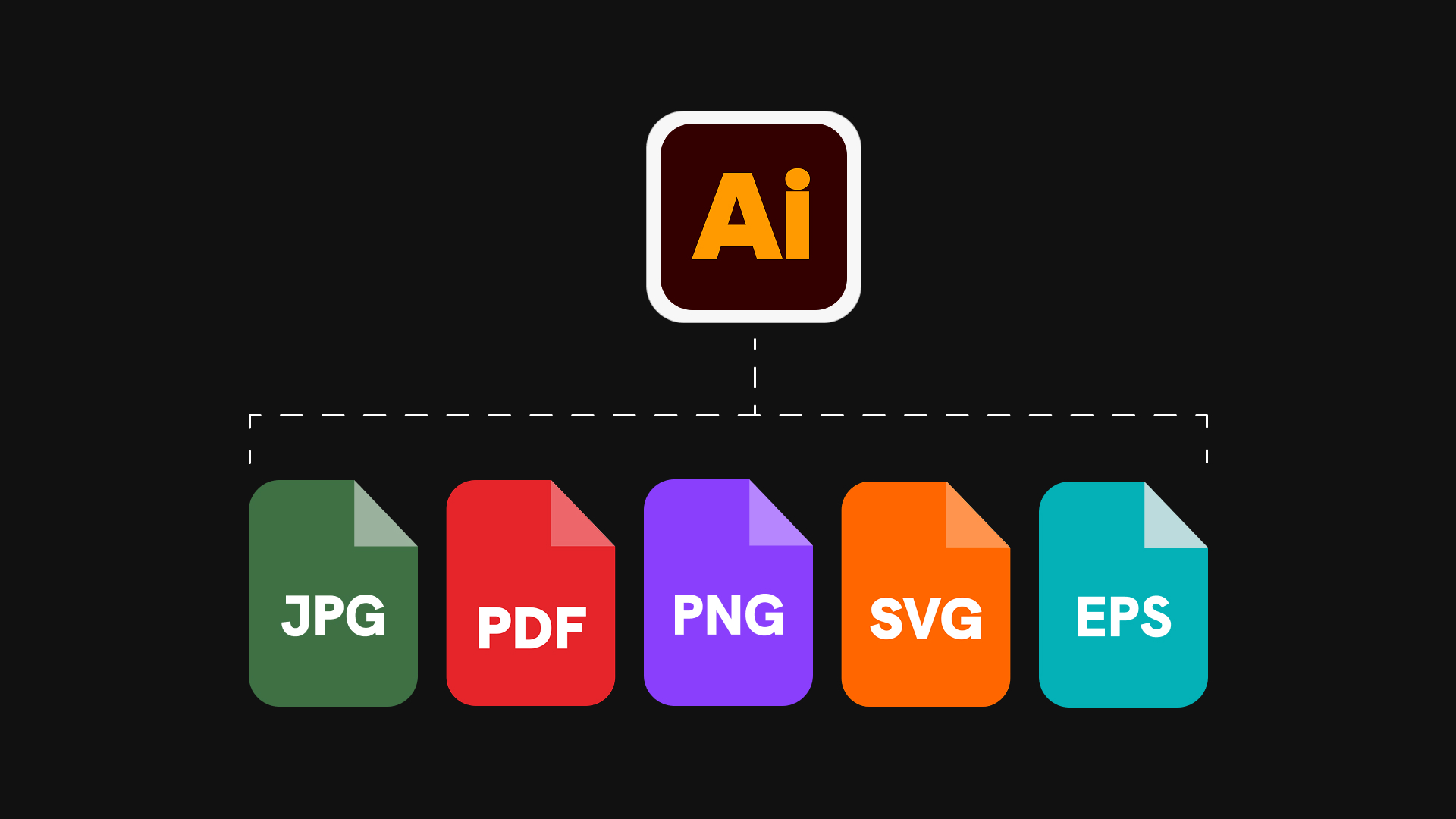
The last step of a logo project is the least interesting and the most visible: the folder of files the client keeps. If it is wrong, you hear about it for years, one email at a time. The printer wants a vector, an assistant pasted a JPG on a dark slide, someone found the AI file and cannot open it. This article covers which formats a client actually needs and why, the colour variants, a naming pattern that survives their folders, and three ways to get the files out of Illustrator: by hand with Export for Screens, with a script, and in one click.
Which formats a client needs, and why
Fewer than you think, but each one for a reason.
| Format | Give it for | Notes |
|---|---|---|
| AI | The master, archived with the client | Save a copy with type outlined; keep your editable version |
| SVG | Websites, apps, design tools, developers | Vector, small, opens in Figma and browsers; outline fonts, no raster |
| PNG | Documents, slides, email signatures, social profiles | Transparent background, exported at 2x or a generous fixed width |
| Print vendors, signage, packaging | Vector, fonts outlined, colours intact; the default print handoff | |
| EPS | Only when a vendor insists | Embroidery, engraving, promotional goods, older signage software |
| JPG | Rarely: platforms that reject transparency | White background, never the only file delivered |
AI is the master. It stays with you and goes into the client's archive with type outlined, so it opens on any machine without the fonts. Do not present it as a file to use day to day.
SVG is the everyday vector. Web, apps, Canva, Figma, developers. Outline the type before export, keep the artwork free of embedded images, and check the file in a browser. SVG has replaced EPS for almost every purpose except the vendors who still ask for EPS by name.
PNG is the everyday raster. It is what ends up in Word, Keynote, Google Slides, the email signature and the LinkedIn page. Transparency is the point. Export at 2x so it survives a retina screen and a modest enlargement, or at a fixed width around 2000 px if the client will not read a suffix.
PDF is the print handoff. A vector PDF with outlined type and the correct colour values is what a print vendor, a sign maker or a packaging supplier expects. If the brand has a CMYK or a spot colour specification, the PDF is where it lives. Export for Screens defaults to a low quality PDF preset, so pick a print preset in its settings or save the print PDF separately.
EPS is legacy. Some embroidery, engraving and merchandise suppliers still request it because their software is old. Provide it when asked, with type outlined, and do not spend time on it otherwise.
JPG is for one case. A platform that refuses transparency, or a preview for someone who cannot open anything else. A JPG on a white background is never a logo file in its own right.
Colour variants
Every lockup needs three colour versions: full colour, black and white. Black is the one-colour version for single-ink print, engraving, embossing and forms. White is the reversed version for dark backgrounds, photography and video. Both are flat: no gradients, no tints, no effects.
To build the black version, duplicate the artboard, select everything on it and set the fill to black. If the mark uses gradients or effects, first choose Object > Expand Appearance, then Edit > Edit Colors > Recolor Artwork, set the number of colours to 1 and pick black. Check that counters and knockouts survive: a white shape that read as a hole in the full colour version disappears when everything turns black. Repeat with white, and preview the white version on a dark rectangle before exporting, because a white PNG on a transparent background looks empty in every file browser. Tell the client that too, in one line, in the readme or the email.
A greyscale version is a fourth variant some guidelines document. Most clients never use it; make it when the guideline calls for it.
File naming that survives a client's folder
Files get dragged out of folders, attached to emails and renamed by nobody. The name has to carry the full description on its own. Use the pattern brand-lockup-colour.extension, in lower case, with hyphens and no spaces:
- acme-logomark-black.svg
- acme-logotype-white.png
- acme-logo-colour.pdf
Keep the order fixed across the set, never add "final", a version number or a date, and never rely on the folder name to disambiguate. Folders are useful, one per format or one per lockup, but every file inside one must still make sense on a desktop.
Artboard names drive file names in both the manual route and the one-click route below, so name the artboards this way from the start.
The manual route: Export for Screens with one artboard per variant
- Build the artboards. One artboard per lockup and colour: logomark, logotype and full logo, each in colour, black and white, nine artboards in all. Select the artwork on each and choose Object > Artboards > Fit to Selected Art so the artboard hugs the logo, then rename each artboard in Window > Artboards by double-clicking its name. Use the naming pattern above without the extension.
- Outline the type. On this export copy, Select > All, then Type > Create Outlines (Shift+Cmd+O, Shift+Ctrl+O on Windows).
- Open Export for Screens. File > Export > Export for Screens (Cmd+Opt+E, Ctrl+Alt+E on Windows). In the Artboards tab, choose All.
- Set the formats. Add three rows: SVG at 1x, PNG at 2x with the suffix @2x or none, and PDF at 1x. Click the gear icon: under PDF, change the preset from Smallest File Size to High Quality Print or the PDF/X preset your vendors use; under SVG, tick Minify; under PNG, keep Art Optimized anti-aliasing.
- Choose the folder and run. Tick Create Sub-folders and set it to Format if you want svg, png and pdf folders, or untick it for a flat set. Click Export Artboard.
- EPS and AI, if needed. File > Save As, choose Illustrator EPS, tick Use Artboards and All, and Illustrator writes one EPS per artboard. For separate AI files, Save As in Illustrator format and tick Save each artboard to a separate file.
- Check. Open every SVG in a browser, place every white PNG on a dark background, and open one PDF to confirm the type is outlined.
Twenty minutes for the first brand, ten once the file is set up, and the result is a folder the client can use without a phone call.
The script route
Illustrator runs ExtendScript, Adobe's older JavaScript dialect, from File > Scripts > Other Script (Cmd+F12, Ctrl+F12 on Windows). A script can loop over artboards and export each one in several formats, which is exactly the job above. This minimal example writes a transparent 2x PNG per artboard, named after the artboard:
var doc = app.activeDocument;
var folder = Folder.selectDialog("Choose the export folder");
if (folder) {
  for (var i = 0; i < doc.artboards.length; i++) {
    doc.artboards.setActiveArtboardIndex(i);
    var name = doc.artboards[i].name.toLowerCase().replace(/[^a-z0-9]+/g, "-");
    var options = new ExportOptionsPNG24();
    options.artBoardClipping = true;
    options.transparency = true;
    options.horizontalScale = 200;
    options.verticalScale = 200;
    doc.exportFile(new File(folder.fsName + "/" + name + ".png"), ExportType.PNG24, options);
  }
}
SVG and PDF follow the same shape with ExportOptionsSVG and PDFSaveOptions, both of which accept an artboard range. Free scripts that do the whole job exist: the Adobe community forums have long threads on exporting artboards to multiple formats, and GitHub hosts several under names like logo packer or artboard exporter. Read a script before running it, run it on a copy, and expect to edit it when Illustrator updates. A script does not create the black and white variants unless someone wrote that part.
Questions
Should I send EPS files at all?
Only if a vendor asks for one by name. SVG and PDF cover every web and print use today, and an EPS with live type or transparency causes more problems than it solves. When you do provide it, outline the type, flatten transparency, and label it in the readme as a legacy format kept for suppliers who require it.
What size should the PNG logos be?
Export at 2x from an artboard that shows the logo at a sensible on-screen size, or at a fixed width around 2000 px for the full logo. That covers slides, documents and social profiles without ever being upscaled. Do not think in ppi: the pixel dimensions are what matter on screen, and a print vendor should get the PDF, not a PNG.
How do I export each artboard as its own SVG?
Name the artboards, then use File > Export > Export for Screens with the Format set to SVG and All artboards selected. Each artboard becomes one file named after the artboard. File > Export > Export As with Use Artboards ticked also works, but it builds the file names from the document name, so the files need renaming afterwards.
Do I need to outline fonts before exporting?
Yes, in every delivered file. Outlined type renders identically on any machine, while SVG, PDF and EPS files with live type either substitute the font or embed it in a way some tools ignore. Outline on an export copy, never in your master, and keep the master with live type so you can revise the wordmark later.
Do it in one click
Anchr Ship is the export tab of the Anchr Tools panel for Illustrator. Bind three artboards, logomark, logotype and full logo, and Ship generates the black and white flat variants as new artboards named source-black and source-white, then exports every artboard as SVG (web optimised, text outlined), PNG at 2x with transparency and PDF, plus a CMYK PDF/X-1a for print. Everything lands in a numbered folder tree inside the folder you pick: primary lockup, logomark and logotype, each split into digital and print, then full colour, black and white. File names are lower case with safe characters, like logomark-black.svg, two artboards that would share a name get a numeric suffix, and exporting again into the same folder replaces the previous run's files. When you ask for them, the same run adds favicons, app icons and four social images. If you retouch a generated variant, Ship recognises it by a signature and preserves it the next time you run it. It does not make greyscale variants or Pantone files. Both plans include all five tools, with a 7 day trial on Per brand and 14 days on Studio; see pricing.
When all you need is the web and social sizes of a single logo, the free logo resizer makes them in the browser from an SVG, PNG or JPG: favicons, app icons, header logo at 2x, profile picture and share image, in one ZIP.